This page should help you get started if you are new to Absolute.
- the Control Panel
- Things to do RIGHT AWAY
Things you should absolutely, positively do before you start playing around! - Creating User Accounts
- Updating Software
- Multimedia Files
- Set Language
- Wireless Setup
- Java Plugin
- Screen Size, Refresh Rate and Fonts
- Set Default Web Browser
- Printer Setup
- Software Instalation and System Configuration
- Add software from Extra
(includes kernel source) - Install NVIDI proprietary driver
(If you have an nvidia graphics chip and want speed.) - Mail Notification
(if you use GMail)

Things to do RIGHT AWAY
The first 2 have to be done while logged in as root
The first 2 have to be done while logged in as root
- Add user accounts
- Check for software updates
- Install Optional Multimedia Packages
- Set native Language
- Tweak your screen size
- Change default Web Browser (if you don't want Google Chrome)
Making Users
Absolute starts up as root user. You have to create a new user account, as it is considered IMPERATIVE that you don't get into the habit of running as root user. [Big security risk, and easy to mess up the system with one sloppy command . . .] Additional user accounts can be created FROM a user account, you simply have to supply the root password to have access to the utility.
I think for most folks it would actually be wise to create a user account, then log in as that user and continue the system setup/tweaking you'd like from there. (The only administrative task you cannot access from a user account is the extra Multimedia Installer. So if you deem yourself worthy -- run that installer before you get comfortable as a regular user.)
Absolute has a utility to create user accounts quite painlessly.
As root you see the utility in the control panel under:
SYSTEM > ADD USER
In the system Menu under:
MENU > SYSTEM TOOLS > CONFIGURATION > CREATE NEW USER
Also available to root in a term, type: absAdduser.py
This utility will prompt you for a new user name and password (and confirm password), setting up the proper permissions and putting the user into the proper, necessary groups for normal running on the machine.
If you want to tweak things by hand for special permissions, home directories, group adding, etc, -- the usual Slackware commandline utilities are available. (useradd and adduser) Below is a screenshot of the little utility to create a new user account:
As you can see below,
1 - enter the user name
2 - enter the password, twice
3 - Click the PLUS button to ad the user.

Absolute starts up as root user. You have to create a new user account, as it is considered IMPERATIVE that you don't get into the habit of running as root user. [Big security risk, and easy to mess up the system with one sloppy command . . .] Additional user accounts can be created FROM a user account, you simply have to supply the root password to have access to the utility.
I think for most folks it would actually be wise to create a user account, then log in as that user and continue the system setup/tweaking you'd like from there. (The only administrative task you cannot access from a user account is the extra Multimedia Installer. So if you deem yourself worthy -- run that installer before you get comfortable as a regular user.)
| my dirty little secret... |
|
Big confession here, I run as root user.
I go on binges when I hack the system incessently, and I cannot justify typing in a password hundreds of times a day. Call me stupid, but I just don't have the time to waste... But don't YOU do it ;-) |
Absolute has a utility to create user accounts quite painlessly.
As root you see the utility in the control panel under:
SYSTEM > ADD USER
In the system Menu under:
MENU > SYSTEM TOOLS > CONFIGURATION > CREATE NEW USER
Also available to root in a term, type: absAdduser.py
This utility will prompt you for a new user name and password (and confirm password), setting up the proper permissions and putting the user into the proper, necessary groups for normal running on the machine.
If you want to tweak things by hand for special permissions, home directories, group adding, etc, -- the usual Slackware commandline utilities are available. (useradd and adduser) Below is a screenshot of the little utility to create a new user account:
As you can see below,
1 - enter the user name
2 - enter the password, twice
3 - Click the PLUS button to ad the user.
Software Package Updates
Absolute uses the glsapt package manager to do "automatic updates" to installed software. I do not find this terribly useful long-term (as I back up my home directory and reinstall at each major revision.)
HOWEVER, it is a very useful function short-term. Great for getting all the system tweaks and bug fixes after a release.
To get to the package manager:
Menu > System Tools > Configuration > Software Updating
or
Menu > Control Center > Software > Package Manager
Click on the "Update" icon on the left:

let it do its business
when completed, click on the menu:
View
and select
Upgradeable

Select them and apply...
Easy-peezey.
Multimedia (MP3s, DVDs and Online Videos)
Lots of media files can be played out-of-the-box, but playing DVDs and videos online that use patent-encumbered codecs cannot. Some audio conversions will not work either if MP3s are involved.
To make these things work:
You must be root to see/use the utility. -- Look for the Multimedia Installer under the Multimedia section of the control panel. Also available to root user from an xterm, type:
mmInstaller

Click on Install Multimedia Files
and subsequently click "Yes" to the following prompt if you are both:
- connected to the internet
- confident that installing the software is legal for you.

You may also notice an "About Multimedia Files" item in the control panel. This gives a more detailed version of the above disclaimer.
If you choose to continue the install, the installer will download, unpack and install the packages for lame, ffmpeg, libdvdcss and the mplayer video codecs. It does this without any more user interaction, unless you have no internet connection -- in which case it will ask you if you wish to continue installing lame and ffmpeg, without libdvdcss and the codecs, or simply skip the install for the time being.
If something is installed that you don't want, simply uninstall it by choosing the package in SOFTWARE > ADD/REMOVE PROGRAMS.
If you want to make sure the installer is not run at a later time, simply delete the folder /usr/src/restricted
Set Language
English - USA is the default language.
If you speak a language other than English, setting the default language while you are logged in as root user should make things easier. The utility lets you quickly change the language (nicely labeled) and also set the keyboard mapping if needed. The setting shown are all UTF8.
Setting the language is the only time it is really necessary to reboot your machine to make everything work properly. So when you are done with the utility below, go to the menu and choose Shutdown > Reboot

The two window managers (pcmanfm and rox-filer) are both language-enabled, so navigation within the filesystem, once you set your native language, should be comfortable. Many of the default applications are also multi-lingual: GIMP, gFTP, AbiWord, brasero, Gcstar, Inkscape, HDR imaging utility . . .
Recently some developers have helped out by language-enabling the utilities written for Absolute and including a couple translations -- hopefully others will follow to increase translatrions to more apps and a greater number of languages.
Wireles Setup - with password
Networking is fairly painless since we started using Network manager with Absolute. A wired connection usually just hooks itself up...
But wireless with a password can confuse folks at first, so here is the very brief how-to:
- Left-Click on the networking icon,
in the taskbar (on the right, down by the clock)

- Then choose the wireless network you want to connect to.
Just left-click on it.
In this case, I choose "Paul"
- That is enough to connect you if there is no password....
But if there is a password,
you have to EDIT the connection to your chosen network.
- Right-Click on the network icon,
Then choose "Edit Connections"

- Choose the Wireless tab
- Left-Click to highlight the network you want to get on
in this case "Paul"

- Then click the Edit button.
- Choose the Wireless Security tab
- Select which security type
(if not the default wpa/wpa2 personal)
- Type in the password

- Then click Save.
- You should be connected in seconds,
but the icon does indicate this at first.
- To remedy, Right-click on the networking icon
and choose to "Refresh Networking..."

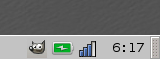
- A moment or two later the taskbar icon should look like this:
Tweaking Screen Size and Fonts
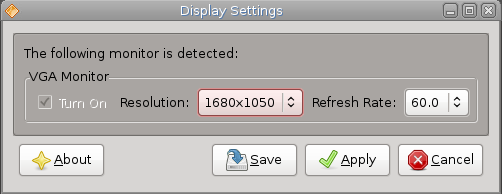
Sometimes the screen size is not what you would like it to be -- everything too tiny or not enough real estate. If such is the case you can use the Set Screen Size utility. You can find it in the control panel under DISPLAY > DISPLAY SETTINGS. Also available for all users from an xterm by typing:
lxrandr.
The possible settings are what is returned from the Xorg xrandr utility, so if they are listed they should work. As a precaution, if you do not "OK" a setting you try, it will automatically return to the original setting. The utility should look like below:
After resizing the screen, the fonts are often "whack" -- so you might want to set the font explicitely with the Set System Font utility:
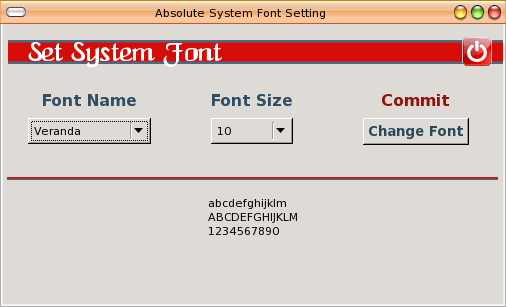
DejaVu Sans is a safe bet, but go ahead and play . . .
Note:
Screen adjusting can leave the background and fonts for some apps a bit "out of phase", so when you have decided on a screen size it is advisable to log off and log back on to restart X. (Log off and on restarts the X server -- there is no need to reboot.
Java runtime (and browser plugin)
Due to licensing issues, the Oracle Java cannot be redistributed in binary form. As of Absolute-15.0b1, openjdk is included in the distribution. (Used by Kodi)
Set the default Web Browser
Most folks will leave this with the default of Chrome.
To change, open the control panel, click on Network, then click on Browser, at which point a little dialog will appear and offer you the choices of whatever Browsers you have installed. (Firefox and Midori are available from the Absoluite repositories in Extra folder.) Mozilla-Firefox and Midori (or, if you have another browser such as Opera installed, it will list that also.) Choose Midori, click set, you're OK.

Printer Setup
There are three items in the root version of the control panel printer section.
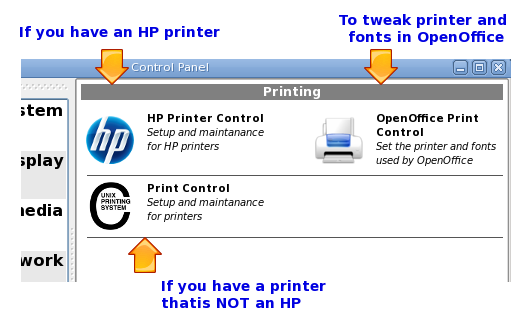
These are all nice and easy, especially the HP setup. Last install I just choose the one the HP software selected and choose as default. Took a look at my ink levels...
What can be a BIT confusing is the Gutenprint setup for printing well with the GIMP.
GUTENPRINT (for GIMP)
When you choose (from GIMP) to PRINT WITH GUTENPRINT, you will have to set up the printer gutenprint uses the first time. (Make sure to SAVE your settings when done.)
Couple quick notes about gutenprint setup:

- Click New Printer -- give it a name and click OK.
- Click Setup Printer
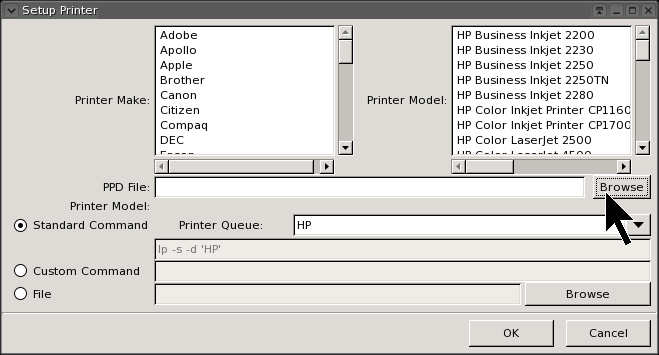
-- from here you can select from the make/model lists or, what is much easier, click on Browse. I have altered the Gutenprint code to begin the search in the folder /etc/cups/ppd, which is where both the HP Tools puts the PPD file, as well as where cups puts it. In other words -- if you have already installed your printer, browse will open up and show just the one PPD file that is for your printer. Choose it, say OK.
- Set the Print Queue Command
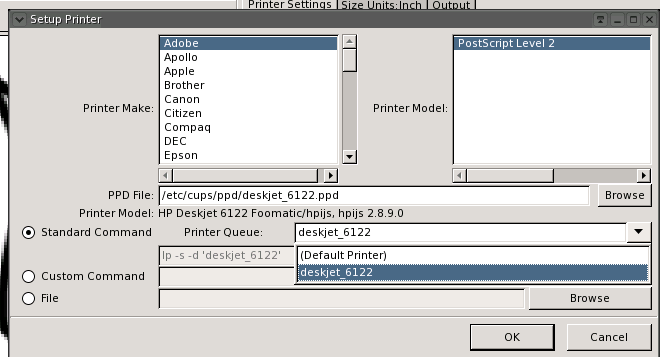
-- This is the one I've forgotten several times myself. The cryptic letters in the box below are almost always perfectly OK. It is the printer listed at the end of the STANDARD COMMAND that you have to choose. Don't leave it on "Default Printer" -- click the drop-down arrow and choose the model of printer you just installed. (It gets it's name from the PPD file, not what you named the printer earlier.)
Do that, Save your settings. Done.
Done
Extra - extra software
Due to size contraints many applications and libraries are in "Extra". The repositories with the additional sotware are:
http://www.slackware.org.uk/absolute/
ftp://ftp.slackware.org.uk/absolute/
.
Nvidia Proprietary Drivers
Those with an Nvidia graphics chip can use the default setup, or they can install Nvidia's proprietary kernel drivers, which will avail the user of greater speed (fps) and 3D capability. To run with Nvidi Proprietary drivers you must compile them. This is NOT difficult but takes a few steps. Instructions are available at:
Slackdocs: proprietary video
A few tips:
Download
- Nvidia Software:
http://www.nvidia.com/object/unix.html
There are links for supported chips for each download. The section you look in is at the top: Linux x86_64/AMD64/EM64T. To make things easier later, I download as root and put the download in the root folder. I also rename the file to a simple nv.run (You'll see why in a bit...)
Preparation
You have to compile/install the driver as root user. You also have to start up WITHOUT the X interface running (which means logging on in a text-console.) The easiest way to do this is to look in the start menu:
START > Settings > Login Type
and choose text-based.
Installation
- Start machine and log in as root user
Because login type was changed to text-based, you will be greeted with:
username login:
To which you naturally will type root
wait for the password prompt, then type it. DO NOT type "startx" as later suggested at the prompt, as we have to compile from the console.
- Nouveau framebuffer has to be disabled
The linux nouveau driver and the proprietary driver are not compatible, so we have to "blacklist" it. From a console type:
echo "blacklist nouveau" >> /etc/modprobe.d/blacklist.conf
- Compile
Because we moved the nvidia download to /root and renamed it to "nv.run", this step is simple, type:
sh nv.run
Accept the agreement and follow the prompts. When nearly done you wil be prompted to allow nvidia installer to change xorg.conf. Let it (yes).
- Finish up
If everyting went OK and the installer says it is complete and returns you to the text console, type:
startx
At this point you will be looking at a nice, colorful GUI again. If so, then you can change your lopgin type back to the usual graphics-based version. In the menu:
MENU > SETTINGS > LOGIN TYPE > GRAPHIC
If you want to peek at results, then for fun you can open a console window and type:
glxgears, which will show you gears running around (hopefully smoothly) with a frame-rate shown every 5 seconds in the console box.
At this point you should be satified and quite joyful -- so unless you run as root all the time, restart or log back in as your usual user.
Mail Notification (...and for GMail)
Mail Notification Setup:
From the start menu: Start > System Tools > Email Notification Setup

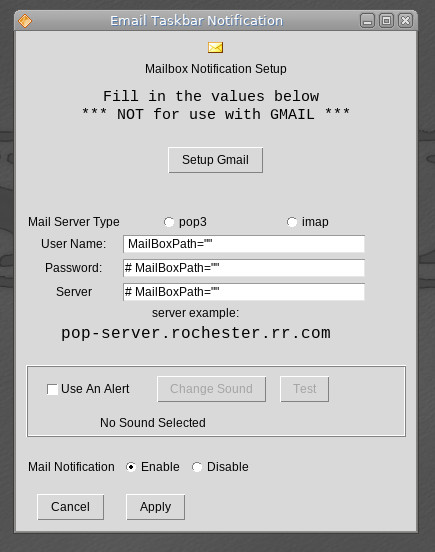
The settings are failrly self-explanatory. Most folks have to look up the "server" information for their ISP...
If you want to set this up for GMail -- the folowing interface will show up:

Enter your full gmail address as username, and your password. I also check the option to have it remember my name/password. All the other settings are already correct for default Absolute usage. The runcommand is not needed UNLESS you want to use something other thean the default browser.